Timeline FAQ Guide
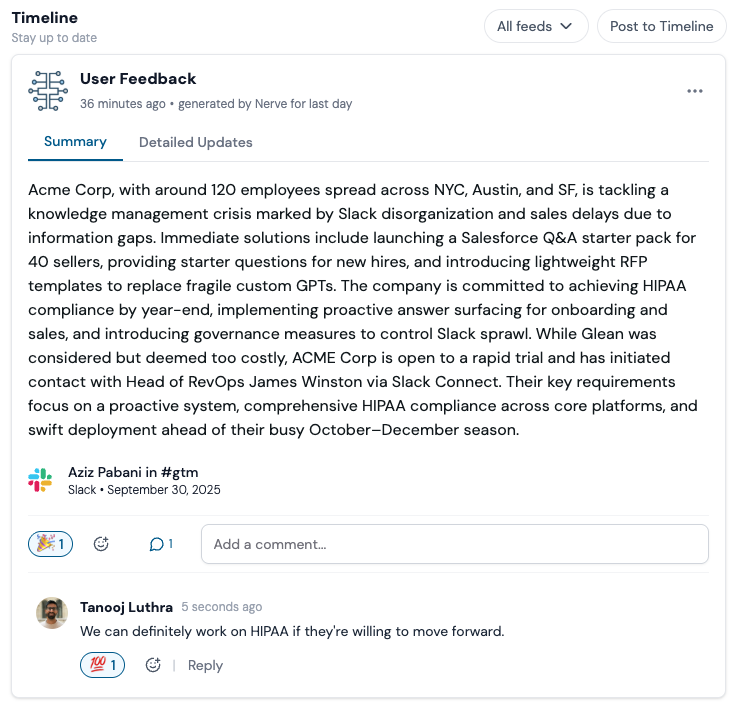
What is Timeline?
Timeline is a personalized newsfeed for your most important work streams, projects, and teams. It automatically collects and summarizes updates from your connected sources (like Slack, email, docs, JIRA, CRM, etc.), so you never miss a critical update. You can create multiple feeds, each tailored to a specific project, team, or topic.How do I create and customize a Timeline feed?
- Create a Feed: Go to your Timeline dashboard and click “Create Feed.” You can start with popular templates (like Sprint Tracking, Sales Deals, Weekly Status, Churn Risk) or build your own.
- Choose Sources: Select which integrations and resources (docs, channels, records) you want the feed to pull from. You can be broad (all Slack, all email) or specific (just one channel or folder).
- Set Privacy: Feeds can be public (visible to everyone), private (just you), or shared with select teammates. Anyone on a feed can edit its settings.
- Custom Instructions: Add instructions to filter for the updates you care about or to have Nerve add extra context (like suggesting next steps or checking if a feature is on the roadmap).
What can I do in Timeline feeds?
- Interact: Follow, comment, react, and share posts with your team. You can reply to Nerve-generated updates or post your own directly to the feed.
- Collaborate: Teammates can read, comment, and interact with all updates, and post their own context or updates.
- Share Updates: Post directly to a feed to share news, decisions, or context with everyone following along.
What types of updates show up in Timeline?
Timeline summarizes:- Project activity (new docs, comments, integrations connected)
- Team communications (Slack, email threads, meeting notes)
- Action items and to-dos
- Weekly digests and status updates
- Cross-company activity (project creations, chats, docs)
- Custom updates based on your instructions
How does Timeline decide what to show?
- Chronological Ordering: Updates are shown in time order, so you can always scroll back to catch up.
- Relevancy: Timeline prioritizes recent and relevant updates. You can mark items as relevant or not relevant, and filter by source, topic, or person.
- Filtering: Use filters to segment by medium (Slack, email), topic, or people. Saved posts appear in a separate “Saved for Later” list.
Can I control notification settings?
Yes! You can choose how and when to get notifications—via email or the Notification Center. You’ll be notified for:- Being added to a feed
- Comments or reactions on your posts
- Action items and weekly digests
- Cross-company updates
What are Custom Instructions?
Custom Instructions let you personalize each feed. For example, you can:- Filter for only certain types of updates
- Ask Nerve to add extra info (like next steps, or checking if a feature is already planned)
- Use incognito chats for integrations, which show up in go/chats as incognito threads
How quickly are updates synced?
Timeline aims to sync new docs and updates quickly. If you’re not seeing recent items, check your integration settings or look for a “last synced” timestamp.Who can see my Timeline feeds?
- Public Feeds: Visible to everyone in your company.
- Private Feeds: Only you.
- Shared Feeds: Only invited teammates.
Can I post manual updates?
Absolutely! You can add your own posts to any feed for context, announcements, or sharing decisions.Troubleshooting & Tips
- If you don’t see updates, make sure your integrations are connected and synced.
- For privacy, double-check feed settings before sharing sensitive info.
- Use Custom Instructions to tailor feeds for specific needs.
- If a teammate can’t see a feed, check for ad blockers or integration permissions.
Best Practices
- Start with a few feeds for your most important projects or teams.
- Use Custom Instructions to filter noise and focus on what matters.
- Encourage team members to interact and post updates for better collaboration.
- Regularly review and update your feed sources and instructions as your needs change.
Getting Started with Timeline
Step 1: Create Your First Feed
- Navigate to the Timeline section in Nerve
- Click “Create Feed”
- Choose from popular templates or start from scratch
- Give your feed a descriptive name
Step 2: Configure Sources
- Select which integrations to include
- Choose specific channels, folders, or projects
- Set up filters to focus on relevant content
- Test the feed to ensure it’s pulling the right updates
Step 3: Customize Settings
- Set privacy levels (public, private, or shared)
- Add custom instructions for filtering
- Configure notification preferences
- Invite team members if it’s a shared feed
Step 4: Engage and Collaborate
- React to and comment on updates
- Post your own updates and announcements
- Use the feed for team discussions
- Save important posts for later reference
Advanced Features
Custom Instructions Examples
- “Only show updates related to the mobile app project”
- “Add context about whether this feature is already planned”
- “Summarize technical discussions in plain English”
- “Flag any mentions of budget or resource constraints”
Need Help?
For Timeline-specific questions or issues:- Contact support at support@usenerve.com
Stay Informed: Timeline helps you stay on top of what matters most without
information overload. Start with a few focused feeds and expand as you get
comfortable.