Author & Live Drafts
What is Author?
Author is your intelligent writing companion that can:- Generate content from scratch using natural language prompts
- Adapt tone, style, and format to match your specific needs
- Incorporate context from your existing documents and files
- Follow templates and structural guidelines for consistency
What is Live Draft?
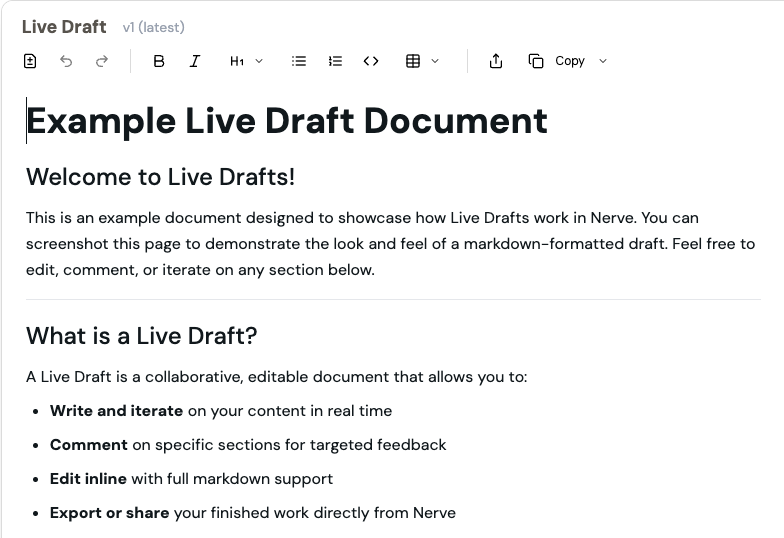
Live Draft is an interactive document editor that enables:- Real-time editing and iteration on your drafts
- Collaborative editing with teammates and Nerve
- Version history and change tracking
- Direct export to Google Docs, Notion, Box, Dropbox, and other platforms
Getting Started
Creating Your First Draft
Automatic Creation: Live Drafts are created automatically when you ask Nerve to write longer-form content. Manual Creation: Click the “Start Draft” button under any chat or Nerve message to begin a new draft.Writing with Author
- Enter your prompt - Describe what you want to write (e.g., “Write a job description for a product manager”)
- Add context - Use “Add Content” to include relevant documents, files, or snippets that should inform your draft
- Apply templates - Use “Template” to set structural or stylistic guidelines for consistent formatting
- Specify style - Request specific tone, voice, or formatting requirements
- Review and refine - Edit the generated content in the Live Draft editor
Understanding Add Content vs Template
- Add Content brings specific documents, files, or snippets as context for your draft. Use this when you want the AI to reference or synthesize information from particular sources
- Template sets structural or stylistic guidelines for your draft. Use this when you want consistency in format or need to follow a specific outline
- Combine both approaches: Add relevant content for context, then apply a template to shape the output structure
Editing and Collaboration
- Inline Editing: Click anywhere in the draft to make direct changes, just like a regular document editor
- Patch-Based Updates: When requesting changes, Nerve only updates the selected section, making the process faster and more efficient
- Team Collaboration: Share drafts with teammates for feedback and co-editing
- Version Control: View previous versions and see diffs between edits to track changes or revert when needed
Publishing Your Work
Once your draft is ready, you can:- Copy in the best format for Google Docs, Notion, Box, Dropbox, or other platforms
- Send drafts via email
- Share unique links with collaborators
- Copy content for use in other applications
Best Practices
Effective Writing Workflow
- Start with clear, specific prompts that describe your desired outcome
- Use Add Content strategically to bring in relevant background information, previous documents, or reference materials
- Apply templates for recurring document types to maintain consistency across your organization
Collaboration Tips
- Iterate frequently using inline edits to quickly improve your drafts
- Leverage version history to monitor changes and collaborate transparently with your team
- Save successful templates and context as Projects for easy reuse across multiple documents
Content Strategy
- Performance reviews: Add self-assessment documents and use output templates that match your HR system
- Team updates: Create templates that ensure consistent structure and include all necessary information
- Marketing content: Establish brand voice guidelines and use them as templates for all content generation
Common Use Cases
- Performance Reviews: Combine self-assessment documents with HR-compatible templates for comprehensive, structured reviews
- Team Communications: Draft weekly updates, project status reports, and announcements with consistent formatting
- Marketing Content: Generate blog posts, newsletters, and social media content that matches your brand voice
- Documentation: Create user guides, process documentation, and knowledge base articles
- Proposals and Reports: Draft business proposals, project reports, and analysis documents
Troubleshooting
- Content not matching expectations? Try being more specific in your prompts and adding more relevant context through Add Content
- Templates not working as expected? Ensure your template follows a clear structure and includes specific formatting guidelines
- Collaboration issues? Check that all team members have appropriate access permissions and that version history is enabled
- Export problems? Verify that your target platform is supported and that you have the necessary permissions to export content
Frequently Asked Questions
Can I collaborate with others in real time? Currently, Live Drafts are individual workspaces, but you can share drafts with others for feedback. How do I revert to a previous version? Use the Version History feature to view and restore older drafts. You can see a complete diff of changes between versions. Can I use my own custom templates? Yes! Add your templates through the Output Template feature or save them as Projects for easy reuse across your organization. What file formats can I export to? Live Draft supports direct export to Google Docs, Notion, Box, Dropbox, and other major platforms, plus standard copy/paste functionality.Need Help?
For Author and Live Draft specific questions:- Contact support at support@usenerve.com
- Join the discussion in your Nerve Slack channel
Ready to start writing? Open Author & Live
Drafts to begin creating your first AI-assisted
document.