> ## Documentation Index
> Fetch the complete documentation index at: https://docs.usenerve.com/llms.txt
> Use this file to discover all available pages before exploring further.
# Author
> AI-powered writing assistant with Live Draft collaboration
# Author & Live Drafts
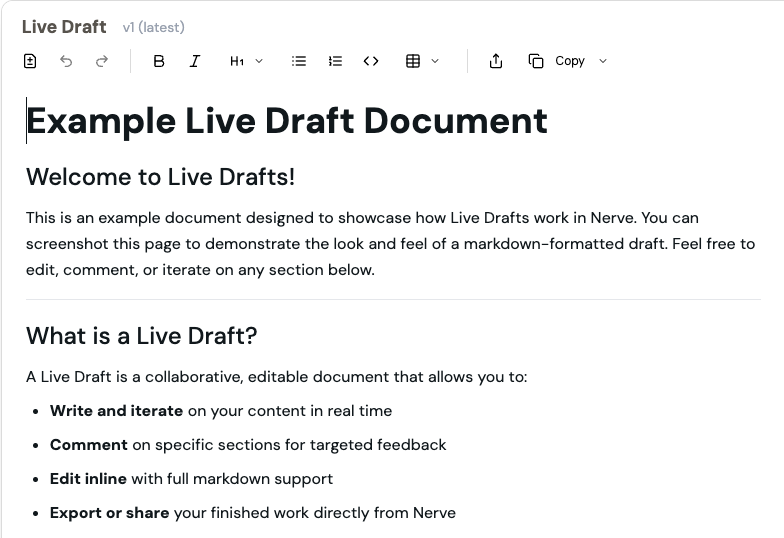 Author is Nerve's AI-powered writing assistant that helps you create, edit, and refine content for any work use case. Combined with Live Draft, it provides a seamless writing and collaboration experience for everything from job descriptions to performance reviews.
## What is Author?
Author is your intelligent writing companion that can:
* Generate content from scratch using natural language prompts
* Adapt tone, style, and format to match your specific needs
* Incorporate context from your existing documents and files
* Follow templates and structural guidelines for consistency
## What is Live Draft?
Live Draft is an interactive document editor that enables:
* Real-time editing and iteration on your drafts
* Collaborative editing with teammates and Nerve
* Version history and change tracking
* Direct export to Google Docs, Notion, Box, Dropbox, and other platforms
## Getting Started
### Creating Your First Draft
**Automatic Creation**: Live Drafts are created automatically when you ask Nerve to write longer-form content.
**Manual Creation**: Click the "Start Draft" button under any chat or Nerve message to begin a new draft.
### Writing with Author
1. **Enter your prompt** - Describe what you want to write (e.g., "Write a job description for a product manager")
2. **Add context** - Use "Add Content" to include relevant documents, files, or snippets that should inform your draft
3. **Apply templates** - Use "Template" to set structural or stylistic guidelines for consistent formatting
4. **Specify style** - Request specific tone, voice, or formatting requirements
5. **Review and refine** - Edit the generated content in the Live Draft editor
### Understanding Add Content vs Template
* **Add Content** brings specific documents, files, or snippets as context for your draft. Use this when you want the AI to reference or synthesize information from particular sources
* **Template** sets structural or stylistic guidelines for your draft. Use this when you want consistency in format or need to follow a specific outline
* **Combine both approaches**: Add relevant content for context, then apply a template to shape the output structure
### Editing and Collaboration
* **Inline Editing**: Click anywhere in the draft to make direct changes, just like a regular document editor
* **Patch-Based Updates**: When requesting changes, Nerve only updates the selected section, making the process faster and more efficient
* **Team Collaboration**: Share drafts with teammates for feedback and co-editing
* **Version Control**: View previous versions and see diffs between edits to track changes or revert when needed
### Publishing Your Work
Once your draft is ready, you can:
* Copy in the best format for Google Docs, Notion, Box, Dropbox, or other platforms
* Send drafts via email
* Share unique links with collaborators
* Copy content for use in other applications
## Best Practices
### Effective Writing Workflow
* Start with **clear, specific prompts** that describe your desired outcome
* Use **Add Content strategically** to bring in relevant background information, previous documents, or reference materials
* Apply **templates for recurring document types** to maintain consistency across your organization
### Collaboration Tips
* **Iterate frequently** using inline edits to quickly improve your drafts
* **Leverage version history** to monitor changes and collaborate transparently with your team
* **Save successful templates** and context as Projects for easy reuse across multiple documents
### Content Strategy
* **Performance reviews**: Add self-assessment documents and use output templates that match your HR system
* **Team updates**: Create templates that ensure consistent structure and include all necessary information
* **Marketing content**: Establish brand voice guidelines and use them as templates for all content generation
## Common Use Cases
* **Performance Reviews**: Combine self-assessment documents with HR-compatible templates for comprehensive, structured reviews
* **Team Communications**: Draft weekly updates, project status reports, and announcements with consistent formatting
* **Marketing Content**: Generate blog posts, newsletters, and social media content that matches your brand voice
* **Documentation**: Create user guides, process documentation, and knowledge base articles
* **Proposals and Reports**: Draft business proposals, project reports, and analysis documents
## Troubleshooting
* **Content not matching expectations?** Try being more specific in your prompts and adding more relevant context through Add Content
* **Templates not working as expected?** Ensure your template follows a clear structure and includes specific formatting guidelines
* **Collaboration issues?** Check that all team members have appropriate access permissions and that version history is enabled
* **Export problems?** Verify that your target platform is supported and that you have the necessary permissions to export content
## Frequently Asked Questions
**Can I collaborate with others in real time?**
Currently, Live Drafts are individual workspaces, but you can share drafts with others for feedback.
**How do I revert to a previous version?**
Use the Version History feature to view and restore older drafts. You can see a complete diff of changes between versions.
**Can I use my own custom templates?**
Yes! Add your templates through the Output Template feature or save them as Projects for easy reuse across your organization.
**What file formats can I export to?**
Live Draft supports direct export to Google Docs, Notion, Box, Dropbox, and other major platforms, plus standard copy/paste functionality.
## Need Help?
For Author and Live Draft specific questions:
* Contact support at [support@usenerve.com](mailto:support@usenerve.com)
* Join the discussion in your Nerve Slack channel
**Ready to start writing?** [Open Author & Live
Drafts](https://app.usenerve.com) to begin creating your first AI-assisted
document.
Author is Nerve's AI-powered writing assistant that helps you create, edit, and refine content for any work use case. Combined with Live Draft, it provides a seamless writing and collaboration experience for everything from job descriptions to performance reviews.
## What is Author?
Author is your intelligent writing companion that can:
* Generate content from scratch using natural language prompts
* Adapt tone, style, and format to match your specific needs
* Incorporate context from your existing documents and files
* Follow templates and structural guidelines for consistency
## What is Live Draft?
Live Draft is an interactive document editor that enables:
* Real-time editing and iteration on your drafts
* Collaborative editing with teammates and Nerve
* Version history and change tracking
* Direct export to Google Docs, Notion, Box, Dropbox, and other platforms
## Getting Started
### Creating Your First Draft
**Automatic Creation**: Live Drafts are created automatically when you ask Nerve to write longer-form content.
**Manual Creation**: Click the "Start Draft" button under any chat or Nerve message to begin a new draft.
### Writing with Author
1. **Enter your prompt** - Describe what you want to write (e.g., "Write a job description for a product manager")
2. **Add context** - Use "Add Content" to include relevant documents, files, or snippets that should inform your draft
3. **Apply templates** - Use "Template" to set structural or stylistic guidelines for consistent formatting
4. **Specify style** - Request specific tone, voice, or formatting requirements
5. **Review and refine** - Edit the generated content in the Live Draft editor
### Understanding Add Content vs Template
* **Add Content** brings specific documents, files, or snippets as context for your draft. Use this when you want the AI to reference or synthesize information from particular sources
* **Template** sets structural or stylistic guidelines for your draft. Use this when you want consistency in format or need to follow a specific outline
* **Combine both approaches**: Add relevant content for context, then apply a template to shape the output structure
### Editing and Collaboration
* **Inline Editing**: Click anywhere in the draft to make direct changes, just like a regular document editor
* **Patch-Based Updates**: When requesting changes, Nerve only updates the selected section, making the process faster and more efficient
* **Team Collaboration**: Share drafts with teammates for feedback and co-editing
* **Version Control**: View previous versions and see diffs between edits to track changes or revert when needed
### Publishing Your Work
Once your draft is ready, you can:
* Copy in the best format for Google Docs, Notion, Box, Dropbox, or other platforms
* Send drafts via email
* Share unique links with collaborators
* Copy content for use in other applications
## Best Practices
### Effective Writing Workflow
* Start with **clear, specific prompts** that describe your desired outcome
* Use **Add Content strategically** to bring in relevant background information, previous documents, or reference materials
* Apply **templates for recurring document types** to maintain consistency across your organization
### Collaboration Tips
* **Iterate frequently** using inline edits to quickly improve your drafts
* **Leverage version history** to monitor changes and collaborate transparently with your team
* **Save successful templates** and context as Projects for easy reuse across multiple documents
### Content Strategy
* **Performance reviews**: Add self-assessment documents and use output templates that match your HR system
* **Team updates**: Create templates that ensure consistent structure and include all necessary information
* **Marketing content**: Establish brand voice guidelines and use them as templates for all content generation
## Common Use Cases
* **Performance Reviews**: Combine self-assessment documents with HR-compatible templates for comprehensive, structured reviews
* **Team Communications**: Draft weekly updates, project status reports, and announcements with consistent formatting
* **Marketing Content**: Generate blog posts, newsletters, and social media content that matches your brand voice
* **Documentation**: Create user guides, process documentation, and knowledge base articles
* **Proposals and Reports**: Draft business proposals, project reports, and analysis documents
## Troubleshooting
* **Content not matching expectations?** Try being more specific in your prompts and adding more relevant context through Add Content
* **Templates not working as expected?** Ensure your template follows a clear structure and includes specific formatting guidelines
* **Collaboration issues?** Check that all team members have appropriate access permissions and that version history is enabled
* **Export problems?** Verify that your target platform is supported and that you have the necessary permissions to export content
## Frequently Asked Questions
**Can I collaborate with others in real time?**
Currently, Live Drafts are individual workspaces, but you can share drafts with others for feedback.
**How do I revert to a previous version?**
Use the Version History feature to view and restore older drafts. You can see a complete diff of changes between versions.
**Can I use my own custom templates?**
Yes! Add your templates through the Output Template feature or save them as Projects for easy reuse across your organization.
**What file formats can I export to?**
Live Draft supports direct export to Google Docs, Notion, Box, Dropbox, and other major platforms, plus standard copy/paste functionality.
## Need Help?
For Author and Live Draft specific questions:
* Contact support at [support@usenerve.com](mailto:support@usenerve.com)
* Join the discussion in your Nerve Slack channel
**Ready to start writing?** [Open Author & Live
Drafts](https://app.usenerve.com) to begin creating your first AI-assisted
document.